Application Minimizer for MacOS with Apple Silicon (Like Windows)
It does what is says . Watch the video below to see it in action .
Keep an eye for coupons at checkout 😉
About DockClickMinimizer
A MacOS application that does only one crucial thing it is designed for , ie App Minimization . Supports MacOS 13+ on Apple Silicon , however recommended to run it on the latest version . Have a look at why you should use this software –
Exactly Like Windows
Experience Windows like App Minimization with just one click on any Running App Icon in Dock.
Hassle Free Operation
Once installed and granted accessibility , it runs quietly in backgroud doing its thing without giving you any Hassle. You kind of forget it exists.
Application Exemption
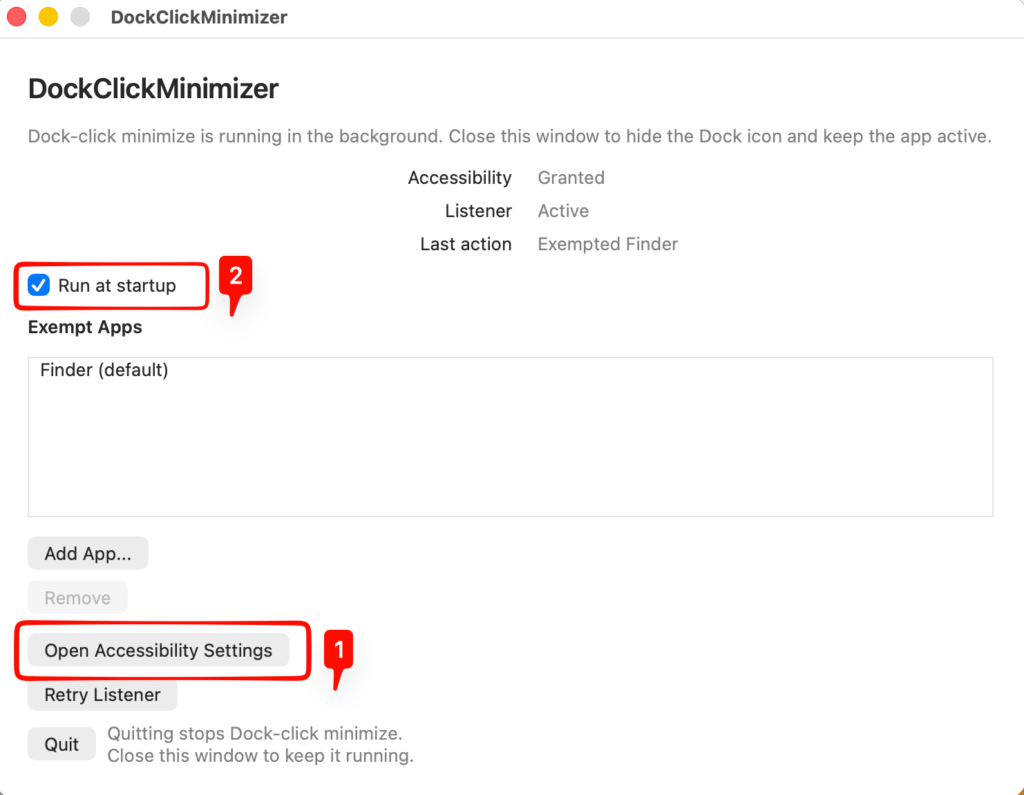
You like certain apps to not minimize ? Add any apps to the exemption list and default MacOS behaviour will take over on the app.
Run at Macbook Startup
Just Enable the Startup option and the app will wake up as soon as you start/restart your Macbook.
No Internet , No Analytics
Completely offline app that doesn’t bother you asking to login somewhere to collect analytics. It is designed to just work.
Easy on Resource
Its a very small app with just one process. The resource consumption is as minimal as the Calculator app. Basically the smallest boy out there.
Steps to Install
Please follow the steps one by one to get the DockClickMinimizer installed in your System. This will take a moment because I am not paying Apple $100 to get the app signed . So bear with me here , I am already poor . Watch the video for step by step visual guide .
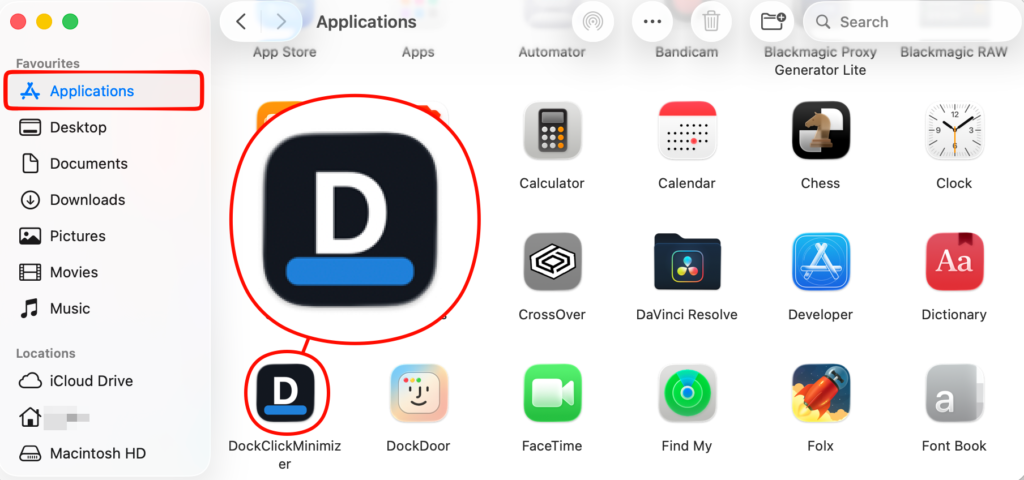
1. Drag & Drop to Applications Folder
- This makes sure this app is accessible via MacOS Finder App
- Open Terminal ( search “Terminal” in finder ) and copy-paste the below code and hit Enter –
chmod +x /Applications/DockClickMinimizer.app/Contents/MacOS/DockClickMinimizer ; open /Applications/DockClickMinimizer.app
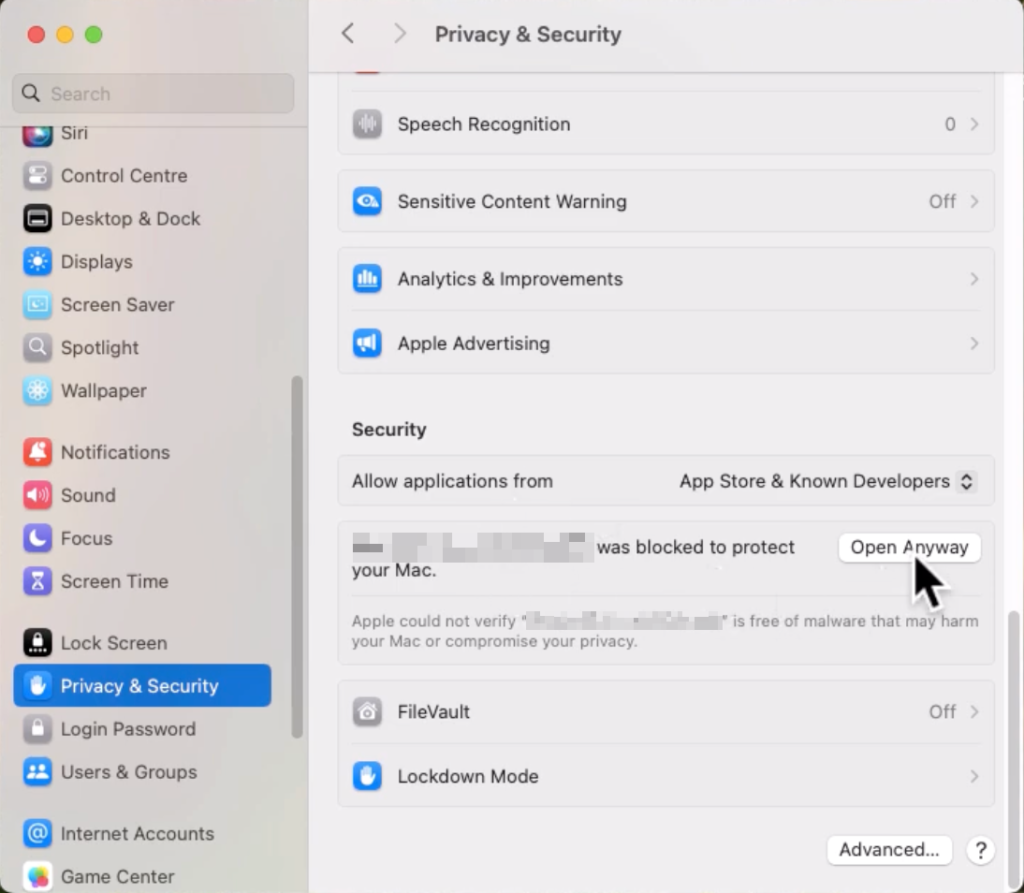
2. MacOS might show error here. Do not worry , follow the below steps.
- On your Mac, choose Apple menu > System Settings, then click Privacy & Security
 in the sidebar. (You may need to scroll down.)
 - Go to Security, then click Open.
- Click Open Anyway.
- This button is available for about an hour after you try to open the app.
- Enter your login password, then click OK.
3. Once Installation is approved
- Open the app & enable ‘Accessibility’ Permission . Once granted , tick the ‘Run at Startup’ so that app runs even after you reboot without having to touch it again.